
 Pricing and product details in this article reflect US market information as of July 2026. For the latest pricing, please check the official Microsoft site.
Why Microsoft Copilot Is Getting So Much Attention Right Now
Driven by the AI boom of the past few years, AI is now built directly into the everyday tools businesses already use — Word, Teams, and beyond. Microsoft Copilot is the leading example.
When it comes to adopting AI in the workplace, the real question isn’t whether to use AI — it’s how to roll it out safely, and how to make it stick.
At JBS USA, we’re increasingly hearing from clients who say things like, “We want our employees to use AI, but we’re not sure where to start,” “There are so many AI tools out there — how do we choose?” or “We don’t know how to get the most out of Copilot in Microsoft 365.”
At the same time, rolling Copilot out company-wide without proper preparation often backfires: you end up paying for licenses that nobody actually uses. This article walks through five things you should know before deploying Microsoft Copilot — from choosing the right plan to calculating licensing costs and thinking through ROI.
Point 1: Copilot Comes in Several Plans — Know the Differences First
Free vs. Paid Plans
Copilot is available in both free and paid tiers, and understanding the difference is the first step.
If your organization already holds a qualifying Microsoft 365 license, you get access to “Microsoft 365 Copilot Chat” — an AI chat feature — at no additional cost. It comes with commercial data protection by default (meaning your inputs are never used to train the underlying AI model), making it safer for business use than a free consumer AI chatbot. Copilot Chat is genuinely useful for drafting content or researching topics based on public web information.
Microsoft 365 Copilot, on the other hand, is where AI works directly inside Word, Excel, and Teams — drafting documents and summaries based on your company’s emails and meetings, and analyzing and organizing Excel data. It requires an additional license: the Enterprise tier runs $30/user/month on an annual contract. For companies with 300 or fewer employees, “Microsoft 365 Copilot Business” ($21/user/month) is also worth a look (limited-time promotional pricing may apply depending on timing — check the official Microsoft site for current terms).
In May 2026, Microsoft also introduced “Microsoft 365 E7” — a top-tier bundle combining Microsoft 365 E5 with Copilot, Entra Suite, and Agent 365 (a management platform for AI agents) at $99/user/month. That’s roughly 15% cheaper than licensing each product separately, making it a strong option for companies already on E5 that are planning a company-wide Copilot rollout.
What Is Copilot Studio?
Copilot Studio is a low-code development tool for building your own AI agents — think internal FAQ chatbots and other conversational AI — and it’s a separate product from Microsoft 365 Copilot. It offers a free trial, but production use incurs charges based on message volume (measured in Copilot credits). Copilot Studio is often paired with Power Automate for workflow automation and Power BI for data visualization, making it well-suited to a wide range of internal automation needs.
Comparing the Three Plans
| Microsoft 365 Copilot Chat (Free) | Microsoft 365 Copilot | Copilot Studio | |
| What it does | Web-based AI chat with commercial data protection | AI assists inside Word, Excel, Teams, and more — with access to company data | Build your own AI agents (chatbots, etc.) |
| Who it’s for | All employees | All employees (start with high-usage departments) | IT teams and process-improvement leads |
| Cost | Included with qualifying Microsoft 365 licenses | $30/user/month (Enterprise, annual contract) $21/user/month (Business, 300 or fewer employees)* | Pay-as-you-go at $0.01/credit, or flat rate at $200/month (25,000 credits) |
*Pricing reflects US rates as of July 2026 and may vary by contract terms. For the latest information, check the official Microsoft site.
Point 2: How to Correctly Estimate Your Microsoft Copilot Licensing Costs
Cost Simulation by Company Size
Here’s a rough estimate for a company-wide rollout of Microsoft 365 Copilot ($30/user/month):
| Company Size | Monthly Cost | Annual Cost |
| 50 employees | $1,500 | $18,000 |
| 100 employees | $3,000 | $36,000 |
| 200 employees | $6,000 | $72,000 |
The formula is simple: $30 × number of users × 12 months. For companies with 300 or fewer employees, the Business tier ($21/user/month) can bring that down by roughly 30%.
Additional Costs That Are Easy to Overlook
Beyond the license fee itself, factor these costs into your budget:
- Copilot Studio usage fees: Pay-as-you-go charges (credit consumption) if you’re building custom agents
- Internal training costs: User training sessions, prompt guide development, and similar materials
- Implementation partner costs: Support for security configuration and permissions cleanup
Optimizing Your Licenses
You don’t need to assign every employee the same plan. Matching plans to actual usage patterns and job functions can meaningfully reduce your total cost.
For example, one of our clients originally planned to purchase licenses for every employee. After analyzing actual usage patterns, they instead limited paid licenses to the administrative and sales departments (roughly 40% of the company), where document creation and meeting volume were highest, and gave everyone else free Copilot Chat access. They also layered in Azure AI services for their most heavily used internal systems. The result: company-wide AI adoption, with annual licensing costs coming in at less than half of the original budget.
Point 3: Get Security and Data Governance Right Before Your Rollout
What Data Can Copilot Access?
“Will Copilot create a data leakage risk?” is a question we hear often. As a baseline principle, Copilot is designed by Microsoft to only access data the logged-in user already has permission to see, and none of your input is ever used to train the underlying AI model.
That said, if your internal access permissions haven’t been properly organized, you may have files that are technically visible to everyone due to a permissions misconfiguration — even though they shouldn’t be. Copilot will search and summarize those files just like any other data it can access, which is exactly why cleaning up permissions before rollout matters.
3 Things You Must Do Before Rollout
- Audit SharePoint and OneDrive access permissions: Check for any confidential folders that are set to “visible to everyone.”
- Review your Microsoft Purview configuration: Confirm your DLP (data loss prevention) policies are properly configured — this is where zero trust security principles come into play.
- Apply sensitivity labels: Label confidential documents to control what Copilot can reference.
US companies should also account for regulatory requirements such as HIPAA, CCPA, and SOX — we cover these in more detail in the FAQ section below.
Point 4: Measuring ROI — What Does Success Actually Look Like?
What Microsoft’s Own Data Shows
A large-scale study published by Microsoft Research in April 2025 — a randomized controlled trial involving 56 companies and more than 6,000 employees — found that Copilot users spent 30 fewer minutes per week reading email and completed document drafting 12% faster. Source: Early Impacts of M365 Copilot (Microsoft Research)
Separately, a Forrester study commissioned by Microsoft (October 2024) estimated a three-year ROI of 132–353% for small and midsize businesses adopting Microsoft 365 Copilot. Source: Microsoft 365 Copilot drove up to 353% ROI for small and medium businesses—new study(Microsoft 365 Blog)
A Realistic ROI Calculation for Your Business
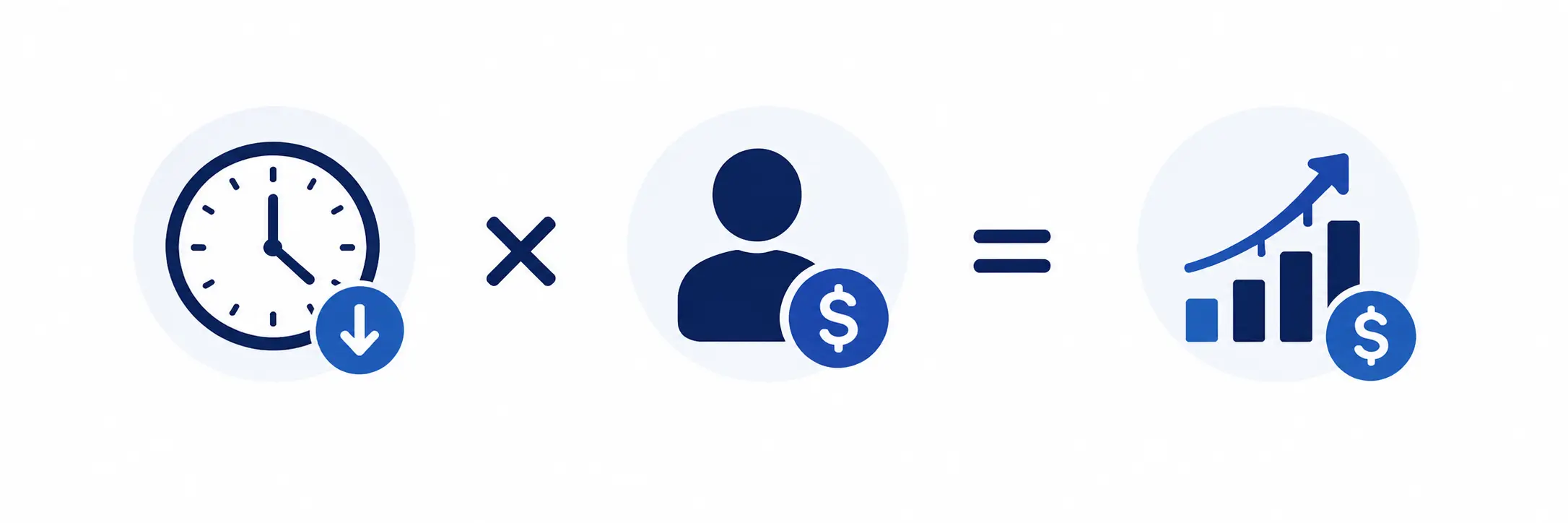
You can estimate your own ROI using this formula:
- (Hours saved per month) × (average hourly wage) = monthly cost savings
- Monthly cost savings ÷ license cost ($30) = return multiple
For example, take a 50-person company where each employee saves 5 hours a month. At an average hourly wage of $30, that’s $150 in savings per employee per month — five times the $30 license cost. Across the whole company, that works out to $7,500 in monthly savings against $1,500 in licensing costs.
That said, Copilot doesn’t generate results automatically just by being installed. Identifying the right use cases and training employees properly are both essential.
Point 5: Common Rollout Failures — and How to Avoid Them
Failure 1: Rolling Out to the Entire Company at Once
One of the most common mistakes is deploying Copilot to every employee before you’re ready. Without training, employees tend to try it a few times, decide it’s “not as useful as expected,” and stop — leaving you paying for expensive licenses that go unused.
A pilot rollout (a small test group of 10–20 people) is a better approach. Measure results in a high-engagement department, build a repeatable success pattern, and then expand from there.
Failure 2: Delaying Security Configuration
Some companies take a “let’s just start using it” approach and deprioritize security settings — only to discover after rollout that information that shouldn’t have been visible showed up in a Copilot response, forcing them to pause usage entirely. In most cases, the root cause isn’t Copilot itself — it’s a pre-existing gap in permissions. Completing the three preparations outlined in Point 3 before rollout will save you this headache.
Failure 3: Skipping Continuous Training and Communication
Here’s what this pattern looks like:: distributing licenses, holding one orientation session, and then leaving employees to figure out the rest on their own. Getting good results from Copilot takes some trial and error — learning how to write effective prompts and identifying which tasks it’s actually well-suited for. Employees who don’t see good results in their first few attempts often conclude “this doesn’t work for my job” and stop using it altogether.
That’s why ongoing reinforcement after rollout matters. Effective tactics include regularly sharing department-specific use cases and prompt examples, setting up an easy way for employees to ask questions, and monitoring usage so you can follow up with people directly.
In our experience, clients who stopped all follow-up after the initial orientation saw usage drop sharply within a few months. Clients who kept sharing use cases on an ongoing basis maintained strong usage. Whether or not you follow up after rollout is often the single biggest factor in whether Copilot adoption sticks.
Summary: How JBS USA Can Help
We’ve covered five key areas: (1) understanding the different plans, (2) estimating costs, (3) security preparation, (4) measuring ROI, and (5) avoiding common failure patterns. Ultimately, how well a Copilot rollout goes comes down to the preparation and approach you take before you start.
JBS USA supports Copilot adoption in the following ways:
- Building Copilot Studio and Power Platform solutions
- License optimization to reduce costs
- Bilingual (Japanese-English) training, usage monitoring, and adoption support
- Integrated security design, including zero trust principles
As a first step toward Copilot adoption, take advantage of a free 30-minute assessment. We’ll review your current Microsoft 365 license setup and goals, and provide a cost estimate along with a recommended path forward. From there, JBS USA can support you through detailed license optimization and building out a full rollout roadmap.
If you’re considering a Copilot rollout in the US, reach out to our team that handles approximately 600 IT support and project engagements annually.
Frequently Asked Questions (FAQ)
Q1. Is Copilot Studio free to use?
Copilot Studio itself offers a free trial, but production use comes with a cost. This trips people up because there are actually three separate things: the free Copilot Chat feature included with qualifying Microsoft 365 licenses, paid Microsoft 365 Copilot ($30/user/month), and Copilot Studio — and they’re all different. Copilot Studio is a tool for building your own custom AI agents, and it’s billed either pay-as-you-go ($0.01/credit) or at a flat rate ($200/month for 25,000 credits). Which option makes sense for your organization depends on your current license setup — a free assessment with JBS USA is a good place to start.
Q2. Our employees already use ChatGPT or Claude personally. Is there still a reason to adopt Copilot?
Yes — for three main reasons.
- Integration with company data: Microsoft 365 Copilot answers using your company’s emails, meetings, and SharePoint documents, respecting each user’s existing access permissions. That makes it especially strong for requests like “summarize the decisions from last week’s leadership meeting” — tasks that depend on internal context.
- Governance: Copilot inherits your existing Microsoft 365 governance controls, including audit logs and DLP through Microsoft Purview. Offering employees a company-sanctioned AI tool also helps guard against “shadow AI” — employees pasting confidential information into personal AI accounts.
- Choice of AI model: Choosing Copilot doesn’t mean giving up ChatGPT or Claude. Within a standard Copilot license, you can choose between OpenAI’s GPT models and Anthropic’s Claude models depending on the task. There’s also a “Model Council” mode that sends a single question to both GPT and Claude simultaneously and displays the results side by side for comparison (availability depends on tenant configuration and feature rollout).
ChatGPT and Claude also each offer business-tier plans, and using them alongside Copilot can make sense depending on your use case. Talk to us during a free assessment about the right combination for your organization.
Q3. Does Microsoft 365 Copilot ($30/month) actually pay for itself?
Used well, Copilot has a good chance of delivering positive ROI for many US companies. Microsoft Research’s large-scale 2025 study found that Copilot users spent 30 fewer minutes a week reading email and completed document drafting 12% faster. Factor in additional time savings from meeting summaries and research tasks, and 15 minutes of saved time per day is a reasonable estimate. For an employee earning $5,000/month (roughly $30/hour), 15 minutes saved daily works out to about $150 in monthly cost savings — well above the $30 license cost. That said, results aren’t automatic: you need to identify the right use cases and invest in training.
Q4. What data can Copilot access? I’m concerned about data leaks.
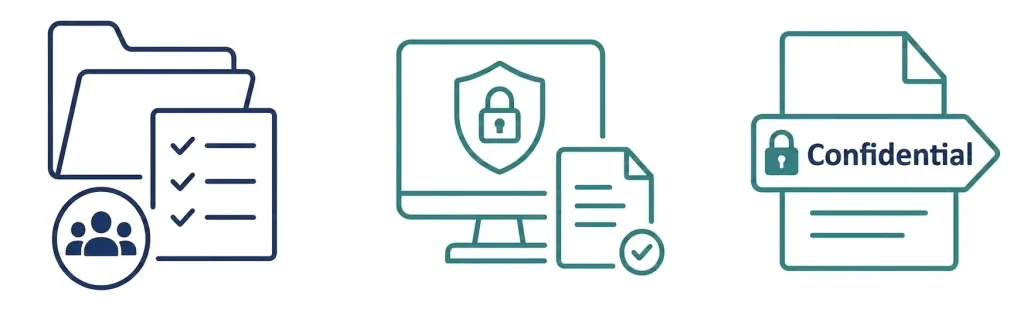
Copilot can only access data that the logged-in user already has permission to see. Microsoft 365 Copilot respects your organization’s existing access controls, and your prompts and responses are not used to train the underlying foundation models. That said, if your internal access permissions aren’t well organized, a permissions gap could expose information you didn’t intend to share. Before rollout, complete these three steps:
- Audit SharePoint and OneDrive access permissions
- Review your Microsoft Purview (information protection / DLP) configuration
- Apply sensitivity labels
JBS USA can support these security assessments alongside your Copilot rollout.
Q5. What’s the difference between Copilot Studio and Copilot?
Microsoft 365 Copilot embeds AI directly into Word and Teams to support everyday tasks like drafting emails and summarizing meetings — it’s meant for every employee. Copilot Studio, by contrast, is a low-code tool for building your own custom AI agents (like internal FAQ bots), aimed at IT teams and process-improvement leads. As a general approach, Microsoft 365 Copilot can be rolled out to employees for everyday productivity, while Copilot Studio can be introduced for more specialized AI needs.
Q6. Does it support multiple languages? Can companies with locations overseas use it?
Yes — Copilot supports multiple languages, including Japanese. Enter a prompt in any supported language, and you’ll get a response in that same language. That said, companies with overseas locations should keep three things in mind. First, Teams meeting transcription relies on a single language setting, so meetings that mix multiple languages can see reduced accuracy — which can also affect the quality of Copilot’s meeting summaries. Second, for technical content or complex instructions, English prompts sometimes produce more consistent results. Third, if your overseas headquarters and US operations use separate Microsoft 365 tenants, you may run into some limitations around cross-referencing data. JBS USA offers training in both Japanese and English, along with broader multilingual support.
Q7. How long does a full company-wide rollout typically take?
This varies by company size and how prepared you are, but as a general guide, the phases below total 10–20 weeks, and factoring in coordination time between phases, the whole process typically runs 3–5 months. We recommend breaking the rollout into three phases:
- Phase 1 (Preparation, 2–4 weeks): License selection, security configuration, permissions audit
- Phase 2 (Pilot, 4–8 weeks): Test rollout and results measurement with a specific department (10–20 people)
- Phase 3 (Company-wide rollout, 4–8 weeks): Training, documentation, and full deployment
A single company-wide rollout tends to fail more often, so we recommend this kind of phased approach.
Q8. Can Copilot usage comply with US regulations like HIPAA and CCPA?
Yes, but it requires the right configuration and agreements in place. For HIPAA, Microsoft offers a Business Associate Agreement (BAA), and Microsoft 365 Copilot is included among the services covered under that BAA. For CCPA, Microsoft provides a corresponding Data Processing Agreement (DPA). For SOX compliance, you’ll need access controls over financial data along with proper audit log retention. JBS USA draws on our experience with US regulatory requirements to support compliance design as part of your Copilot rollout. For the latest information, check the Microsoft Trust Center.
Q9. What kind of support can I get by working with JBS USA?
We provide the following support on an ongoing basis:
- Free assessment (30 minutes): Review your current Microsoft 365 license setup and an initial cost-benefit estimate for Copilot adoption
- Implementation consulting and license optimization: Support for understanding your current state and designing your operating model, including reviewing your existing contract to add Copilot cost-effectively
- Security configuration: Access permissions audit, Microsoft Purview setup, and implementation support using Microsoft 365 E5 Security
- Copilot Studio development: Design and development of internal FAQ bots, approval workflows, and other AI agents
- Bilingual training and e-learning: Employee training in both Japanese and English, plus ongoing learning content to keep up with new features
- Adoption support: Building internal communities, sharing use cases, monitoring usage, and recommending improvements to help adoption stick
- Ongoing operations and support: A help desk for system administrators, reduced operational burden, security alert monitoring, and data backup management
Get started with a free 30-minute assessment.

[Author Bio]
Hiroyuki Tomomasa (Business Solutions Dept.)
For 18 years across Japan and the US, he has supported ERP implementations for over 40 companies, focusing primarily on SAP and Microsoft Dynamics. Currently, he specializes in DX and AI implementation support that bridges business operations and technology, leveraging AI agents, Copilot Studio, Azure AI Foundry, and MCP.