
What You Can Do Right Now with Microsoft 365
Do everyday challenges like approval requests getting lost in email, or spending hours every month compiling Excel reports, sound familiar?
If your company already uses Microsoft 365, Power Automate and Power BI make it relatively easy to start automating manual tasks and visualizing your data. This is a particularly useful option for IT teams and business leaders at US companies looking to improve operational efficiency.
What Is Power Automate? A Tool for Automating Routine Tasks
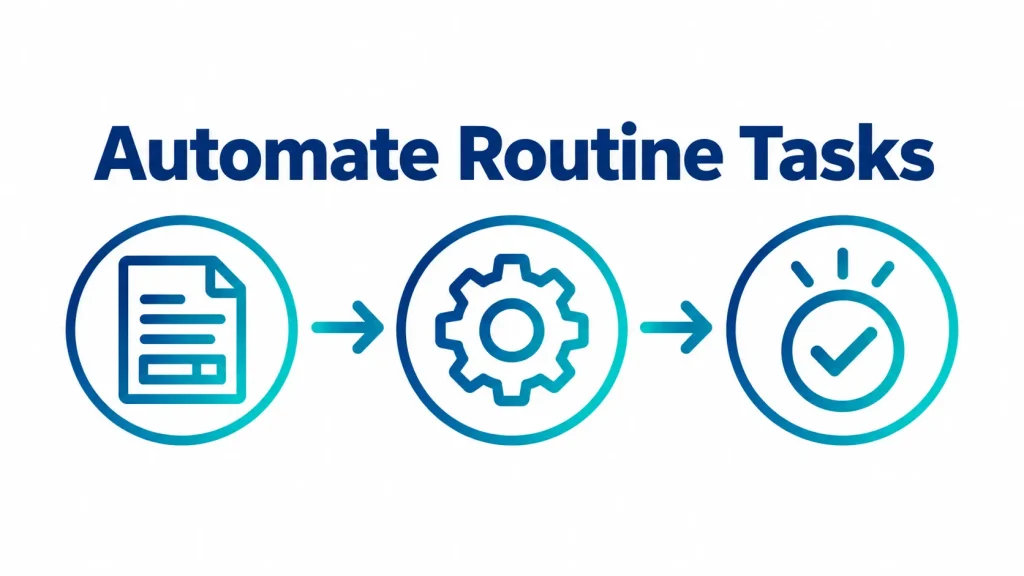
Power Automate is a business automation platform from Microsoft. It lets you build automated workflows using no-code or low-code tools, and it connects with Microsoft 365 and a wide range of other services and applications.
For example, you can automate routine tasks like:
- Automatically notifying the right person when a new request is submitted
- Automatically routing an item to the next approver once it’s approved
- Automatically saving email attachments to SharePoint
- Automating data entry into Excel or other repetitive tasks on your PC
Power Automate can automate PC-based tasks much like typical RPA tools, but it stands out for letting you build cloud service integrations and approval workflows on the same platform.
What Is Power BI? A Tool for Visualizing Data
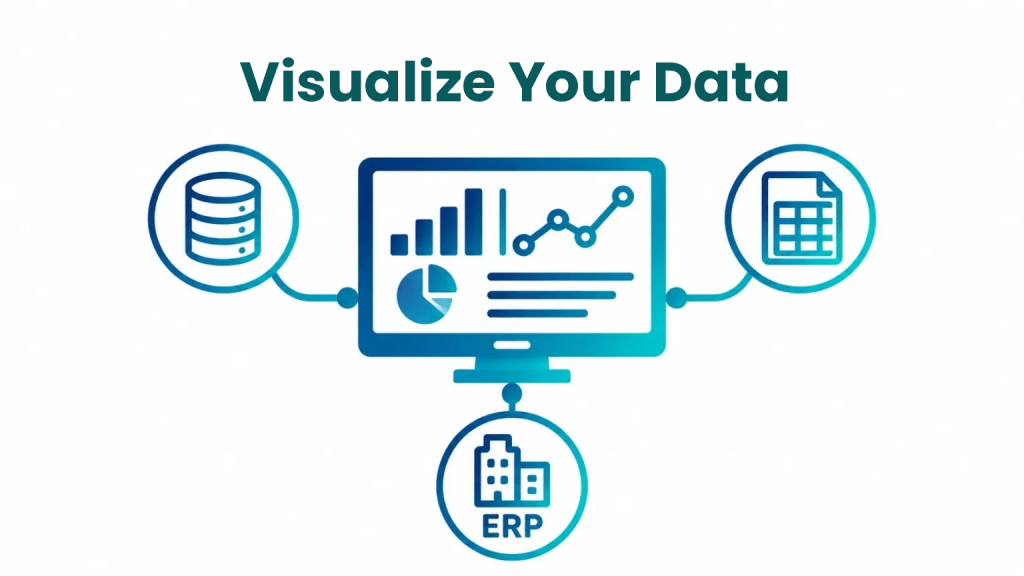
Power BI is a business intelligence tool that connects to multiple data sources and turns your data into charts and dashboards.
For example, by pulling together data from your ERP, Excel files, and SQL databases, you can view things like:
- Sales performance
- Inventory levels
- Results by department
- KPIs by location
— all from a single dashboard.
Even if you’re currently gathering Excel files from multiple locations or departments and compiling them by hand, Power BI can help you gain faster, clearer visibility into your operations.
What You Can Do by Combining Power Automate and Power BI
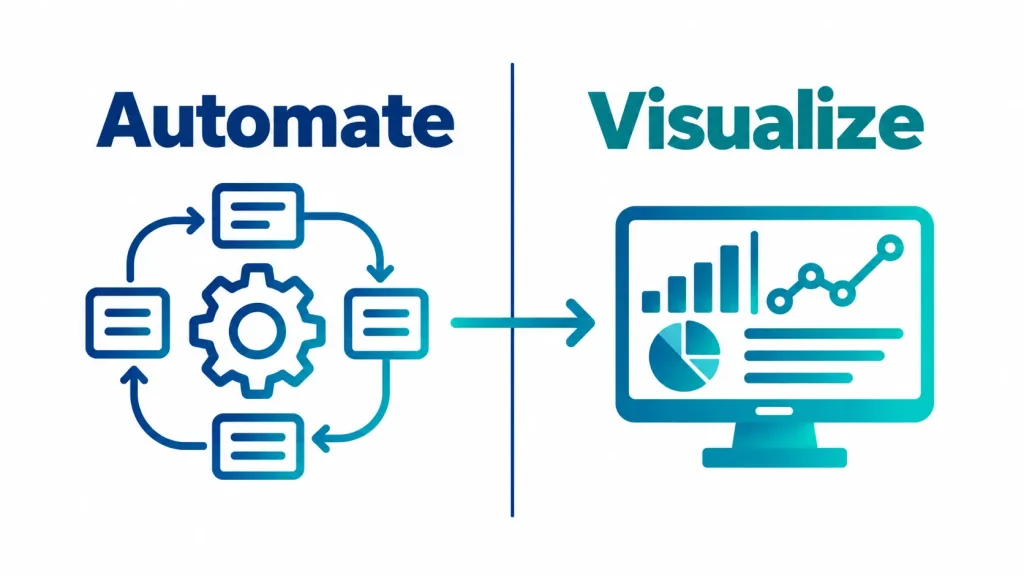
Combining the workflows you build in Power Automate with Power BI lets you streamline everything from automating a process to visualizing and analyzing the results, as one connected flow.
For example, you might build an approval workflow for expense reports or purchase requests in Power Automate, capturing data on requests, approval outcomes, and processing status along the way. Connect that data to Power BI, and you can visualize things like:
- Number of requests by department or type
- Status of approved vs. pending requests
- Trends in requested amounts over time
- How long approvals are taking
This lets you streamline day-to-day work with Power Automate while using the data it generates — visualized and analyzed in Power BI — to drive ongoing process improvements.
3 Common Use Cases
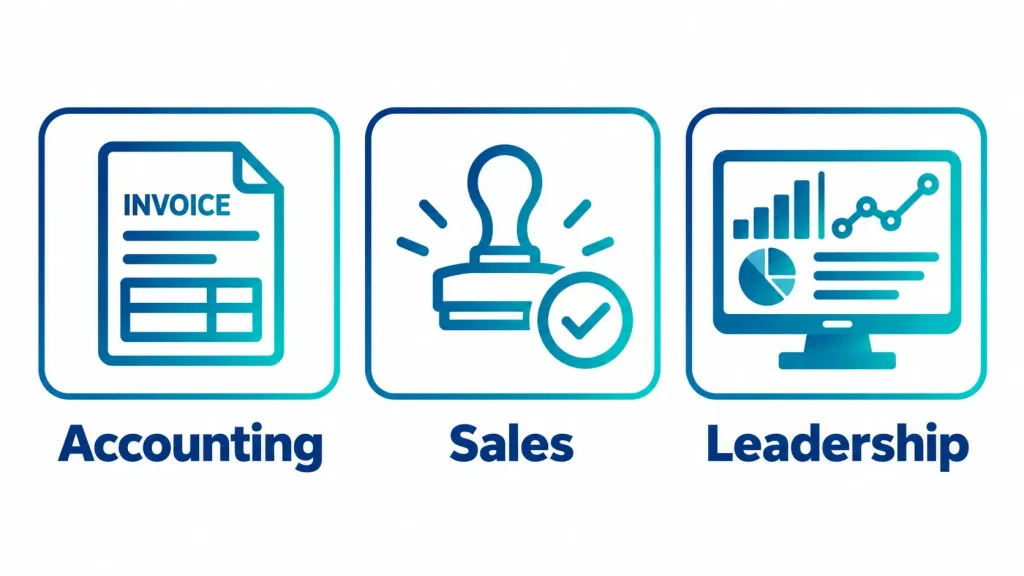
1. Accounting: Automatically Recording Invoice Data
Using Power Automate to automatically capture invoice information received by email or through forms can reduce duplicate data entry in Excel and other systems.
2. Sales: Quote Approval Workflows
You can build a workflow that automatically sends an approval request to a manager once a quote is created, then notifies the sales rep of the outcome — cutting down on the back-and-forth of checking approval status by email.
3. Leadership: Centralized Visibility Across Departments
By bringing together data from sales, accounting, inventory, and more into Power BI, leadership can monitor performance across multiple departments from a single dashboard.
JBS USA’s Power Automate and Power BI Implementation Support
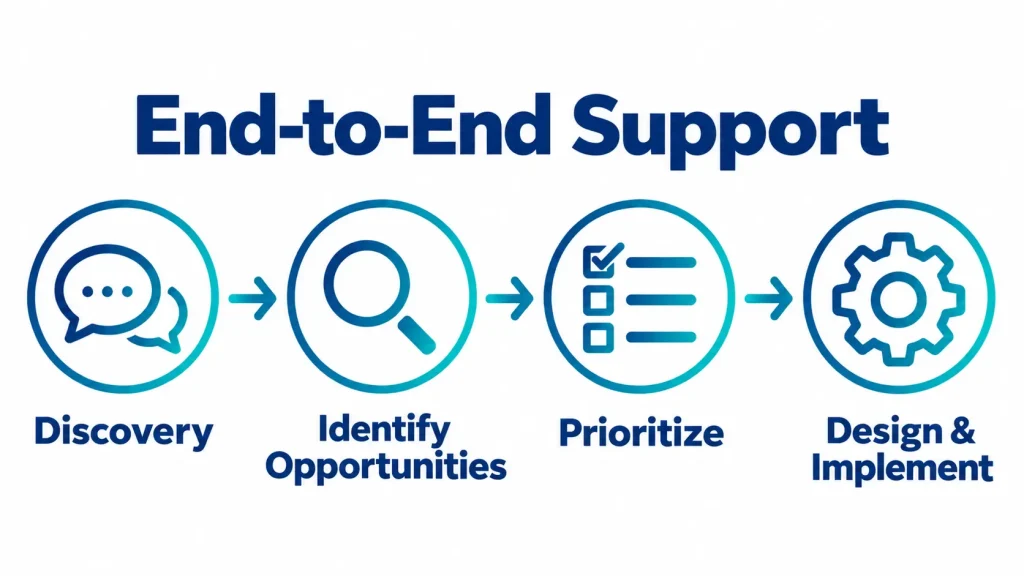
JBS USA provides implementation support for Power Automate and Power BI.
Rather than just deploying the tools, we support you through the full process:
Understanding Your Operations → Identifying Automation Candidates → Prioritizing → Design & Implementation
We’re happy to work with you even if you’re starting from “we’re not sure what to automate to see real results.”
See how one of our customers improved operational efficiency through ERP modernization in the case study below.

Summary
Within a Microsoft 365 environment, Power Automate and Power BI let you move forward with automation and data visualization step by step.
You don’t need to build a large-scale system from day one. We recommend starting small: pick one task that’s manual, happens often, and is prone to errors, and begin there.
JBS USA works with you to understand your operations, then supports you end-to-end — from identifying the right processes to automate through design and implementation.
If you’d like to get a clearer picture of where automation could make the biggest difference for your business, or want a recommendation on how to apply Power Automate and Power BI to your operations, reach out to JBS USA, which handles roughly 600 IT-related engagements a year. We offer a free initial consultation and will recommend an approach suited to your environment and goals.
Frequently Asked Questions (FAQ)
Q1. Does Power Automate cost extra?
Some Microsoft 365 licenses include limited usage rights for Power Automate, covering automated, scheduled, and button-triggered flows built with standard connectors. Premium connectors, custom connectors, and on-premises connections, however, require an additional license such as Power Automate Premium.
Q2. Can I use it without programming knowledge?
Yes. Power Automate is designed for no-code and low-code use, and with templates available, it’s a relatively approachable tool to get started with.
Q3. What’s the difference between RPA and Power Automate?
RPA is a general term for the concept and technology of having software robots carry out PC tasks that a person would otherwise do manually. Power Automate is Microsoft’s automation tool, which includes RPA capabilities. What sets it apart is that it also supports automating workflows that connect Microsoft 365 and a variety of other cloud services.
Q4. Which tasks should we automate first?
We recommend starting with tasks that are manual, performed frequently, and prone to data entry errors.

[Author Bio]
Masaya Tatsuta (President / CEO)
JBS USA after gaining experience at a major Japanese trading company and management consulting firms. At JBS USA, he led a wide range of projects in IT infrastructure, system development, and ERP consulting. He was appointed President / CEO of JBS USA in October 2026 and supports companies in driving DX and business transformation in the U.S. market.